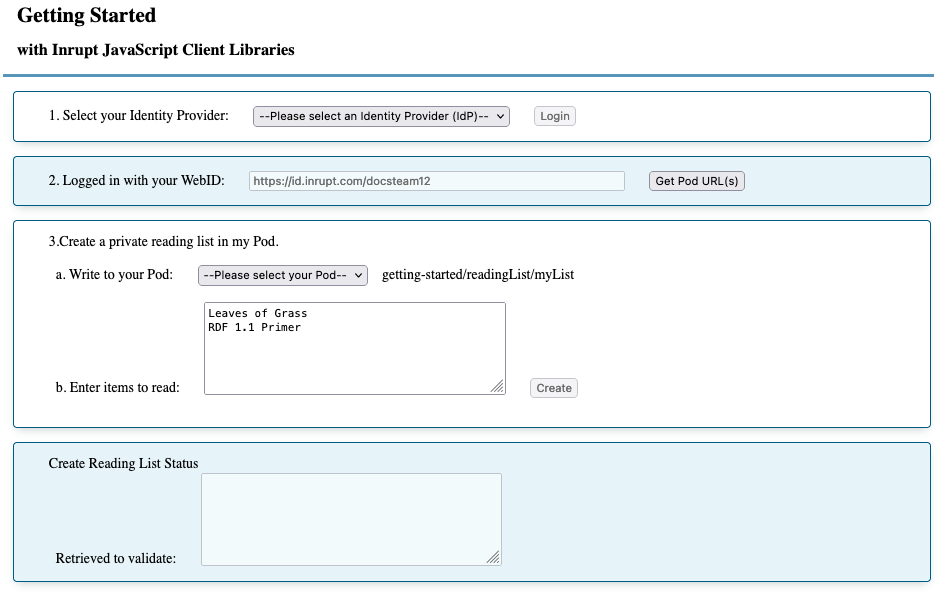
> For the complete documentation index, see [llms.txt](https://docs.inrupt.com/llms.txt). Markdown versions of documentation pages are available by appending `.md` to page URLs; this page is available as [Markdown](https://docs.inrupt.com/sdk/javascript-sdk/tutorial.md).
# Tutorial
This tutorial creates an introductory application that uses Inrupt’s JavaScript client libraries to:
* Login a user.
* Reads the Pod URL(s) associated with the user’s [WebID](/reference/glossary.md#webid). A WebID is a URL that identifies a user and dereferences to the user’s WebID profile document.
* Write a reading list to the user’s Pod.
The tutorial uses [npm](https://www.npmjs.com/get-npm) and [webpack](https://webpack.js.org) to run the application locally on **`http://localhost:8080/`** .
## Prerequisites
### Install npm
If you do not already have npm installed, [install npm](https://www.npmjs.com/get-npm). npm is installed as part of the Node.js installation.
Inrupt’s Javascript Client libraries support [Active/Maintenance LTS releases for Node.js](https://github.com/nodejs/release).
{% hint style="info" %}
**Note**
* This tutorial uses Inrupt’s [PodSpaces](https://github.com/inrupt/docs-gitbook/tree/main/.gitbook/includes/broken-reference/README.md) and provides instructions on creating an account, WebID and a Pod through PodSpaces.
* PodSpaces is currently available as Developer Preview. Do not use for production or storing sensitive/personal data.
{% endhint %}
To get a WebID and a Pod on [PodSpaces](https://github.com/inrupt/docs-gitbook/tree/main/.gitbook/includes/broken-reference/README.md) :
1. Go to [PodSpaces](https://start.inrupt.com/).
2. To create an account, you must agree to the Inrupt’s Terms of Service. To agree, select the checkbox.
3. If you agree to Inrupt’s Terms of Service, click on the **Sign Up** button.
4. If you have not registered an account with the Inrupt Identity Provider, click on the **Sign up** link to create an account:
1. Fill in your username, email, and password.
2. Click **Sign Up**. You are sent a verification email.
3. Check your email for the verification email. Follow the instructions in the email to verify. Check your spam if you do not see the email in your inbox.
4. Once verified, return to click **Continue** to go to the Sign in page:
1. Enter your username and password.
2. Click **Sign in** to your account. The screen displays the access required to continue.
5. To allow and continue, click **Allow**.\
The application displays your WebID and Pod Storage details:
1. WebID: **`https://id.inrupt.com/{username}`** .\
Pod Storage: **`https://storage.inrupt.com/{Root Container}`**
## Build the Application
### 1. Initialize the Application
1. Create the directory structure for your Webpack project:
```sh
mkdir -p my-demo-app my-demo-app/src my-demo-app/dist
```
2. Go to the newly created **`my-demo-app`** directory.
```sh
cd my-demo-app
```
3. Initialize the application.
* To accept the default values for the application without prompts:
```sh
npm init -y
```
* Or, to be prompted to enter values for the application:
```sh
npm init
```
1. You can either hit return to accept the default values (including empty values) or supply your own values.
2. When prompted **`Is this OK? (yes)`** , enter to accept **`yes`** .
### 2. Install the Client Libraries
1. Use npm to install the **`solid-client`** , **`@inrupt/solid-client-authn-browser`** , **`vocab-common-rdf`** , and **`vocab-solid`** libraries:
```sh
npm install @inrupt/solid-client @inrupt/solid-client-authn-browser @inrupt/vocab-common-rdf @inrupt/vocab-solid
```
### 3. Install Webpack
1. Use npm to install [Webpack](https://webpack.js.org) packages:
```sh
npm install webpack webpack-cli webpack-dev-server css-loader style-loader --save-dev
```
2. In **`my-demo-app`** directory, create a **`webpack.config.js`** file with the following content:
```javascript
const path = require("path");
module.exports = {
mode: "development",
entry: "./src/index.js",
output: {
path: path.resolve(__dirname, "dist"),
filename: "index.js",
},
module: {
rules: [
{
test: /\.css$/,
use: [{ loader: "style-loader" }, { loader: "css-loader" }],
},
],
},
devServer: {
static: "./dist",
},
};
```
3. In **`my-demo-app`** directory, edit the **`package.json`** file to add **`build`** and **`start`** script fields to **`scripts`** :
"scripts": {
  "test": "echo \"Error: no test specified\" && exit 1",
  "build": "webpack",
  "start": "webpack serve --open"
},
{% hint style="info" %}
Be sure to add the comma after the preceding field value before adding the `build` and `start` fields.
{% endhint %}
### 4. Create the Application
In the **`my-demo-app`** directory, create the files for the application. For an explanation of the JavaScript code used in this tutorial, see [Explanation](/sdk/javascript-sdk/tutorial/explanation.md)
**A. Create the CSS File**
In the **`my-demo-app/dist`** folder, create a **`my-demo.css`** file with the following content:
```css
h2,h3 {
margin: 1rem 1.2rem 1rem 1.4rem;
}
body * {
margin-left: .5rem;
margin-right: 1rem;
}
header {
border-bottom: #5795b9 solid;
padding-left: .5rem;
}
.panel {
border: 1px solid #005b81;
border-radius: 4px;
box-shadow: rgb(184, 196, 194) 0px 4px 10px -4px;
box-sizing: border-box;
padding: 1rem 1.5rem;
margin: 1rem 1.2rem 1rem 1.2rem;
}
#login {
background: white;
}
#read, #results {
background: #e6f4f9;
}
#labelStatus[role="alert"] {
padding-left: 1rem;
color: purple;
}
.display {
margin-left: 1rem;
color: gray;
}
.disabled {
color: gray;
background-color: gray;
}
dl {
display: grid;
grid-template-columns: max-content auto;
}
dt {
grid-column-start: 1;
}
dd {
grid-column-start: 2;
}
```
**B. Create the HTML File**
In the **`my-demo-app/dist`** , create an **`index.html`** file with the following content:
{% hint style="info" %}
If you are not using your PodSpaces account, you can modify the **`select-idp`** options.
{% endhint %}
<!DOCTYPE html>
<html>
<head>
  <meta charset="utf-8">
  <title>Getting Started: Inrupt JavaScript Client Libraries</title>
  <script defer src="./index.js"></script>
  <link rel="stylesheet" href="my-demo.css" />
</head>
<body>
  <header>
    <h2>Getting Started</h2>
    <h3>with Inrupt JavaScript Client Libraries</h3>
  </header>
  <section id="login" class="panel">
    <div class="row">
      <label id="labelIdP" for="select-idp">1. Select your Identity Provider: </label>
      <select id="select-idp" name="select-idp">
        <option value="">--Please select an Identity Provider (IdP)--</option>
        <!-- Update the select-idp option if not using PodSpaces -->
        <option value="https://login.inrupt.com">https://login.inrupt.com (PodSpaces)</option>

      </select>
      <button name="btnLogin" id="btnLogin">Login</button>
    </div>
  </section>
  <div id="read" class="panel">
    <div class="row">
      <label id="readlabel" for="myWebID">2. Logged in with your WebID: </label>
      <input type="text" id="myWebID" name="myWebID" size="50" disabled>
      <button name="btnRead" id="btnRead">Get Pod URL(s)</button>
    </div>
  </div>
  <div id="write" class="panel">
    <div class="row">
      <label id="writelabel">3.Create a private reading list in my Pod.</label>
    </div>
    <br>
    <div class="row">
      <div>
        <label id="podlabel" for="select-pod">a. Write to your Pod: </label>
        <select id="select-pod" name="select-pod" widths: 120>
          <option value="">--Please select your Pod--</option>
        </select>getting-started/readingList/myList
      </div>
    </div>
    <br>
    <div class="row">
      <div>
        <label id="listLabel" for="titles">b. Enter items to read: </label>
        <textarea id="titles" name="titles" rows="5" cols="42">
Leaves of Grass
RDF 1.1 Primer</textarea>
        <button name="btnCreate" id="btnCreate">Create</button>
      </div>
      <br>
    </div>
  </div>
  <div id="results" class="panel">
    <div class="row">
      <label>Create Reading List Status</label>
      <span id="labelCreateStatus"></span>
    </div>
    <div class="row">
      <div>
        <label id="labelRetrieved" for="savedtitles">Retrieved to validate:</label>
        <textarea id="savedtitles" name="savedtitles" rows="5" cols="42" disabled></textarea>
      </div>
    </div>
  </div>
</body>
</html>
**C. Create the JS File**
In the **`my-demo-app/src`** , create an **`index.js`** file with the following content:
```javascript
// Import from "@inrupt/solid-client-authn-browser"
import {
login,
handleIncomingRedirect,
getDefaultSession,
fetch
} from "@inrupt/solid-client-authn-browser";
// Import from "@inrupt/solid-client"
import {
addUrl,
addStringNoLocale,
createSolidDataset,
createThing,
getPodUrlAll,
getSolidDataset,
getThingAll,
getStringNoLocale,
removeThing,
saveSolidDatasetAt,
setThing
} from "@inrupt/solid-client";
import { SCHEMA_INRUPT, RDF, AS } from "@inrupt/vocab-common-rdf";
const selectorIdP = document.querySelector("#select-idp");
const selectorPod = document.querySelector("#select-pod");
const buttonLogin = document.querySelector("#btnLogin");
const buttonRead = document.querySelector("#btnRead");
const buttonCreate = document.querySelector("#btnCreate");
const labelCreateStatus = document.querySelector("#labelCreateStatus");
buttonRead.setAttribute("disabled", "disabled");
buttonLogin.setAttribute("disabled", "disabled");
buttonCreate.setAttribute("disabled", "disabled");
// 1a. Start Login Process. Call login() function.
function loginToSelectedIdP() {
const SELECTED_IDP = document.getElementById("select-idp").value;
return login({
oidcIssuer: SELECTED_IDP,
redirectUrl: new URL("/", window.location.href).toString(),
clientName: "Getting started app"
});
}
// 1b. Login Redirect. Call handleIncomingRedirect() function.
// When redirected after login, finish the process by retrieving session information.
async function handleRedirectAfterLogin() {
await handleIncomingRedirect(); // no-op if not part of login redirect
const session = getDefaultSession();
if (session.info.isLoggedIn) {
// Update the page with the status.
document.getElementById("myWebID").value = session.info.webId;
// Enable Read button to read Pod URL
buttonRead.removeAttribute("disabled");
}
}
// The example has the login redirect back to the root page.
// The page calls this method, which, in turn, calls handleIncomingRedirect.
handleRedirectAfterLogin();
// 2. Get Pod(s) associated with the WebID
async function getMyPods() {
const webID = document.getElementById("myWebID").value;
const mypods = await getPodUrlAll(webID, { fetch: fetch });
// Update the page with the retrieved values.
mypods.forEach((mypod) => {
let podOption = document.createElement("option");
podOption.textContent = mypod;
podOption.value = mypod;
selectorPod.appendChild(podOption);
});
}
// 3. Create the Reading List
async function createList() {
labelCreateStatus.textContent = "";
const SELECTED_POD = document.getElementById("select-pod").value;
// For simplicity and brevity, this tutorial hardcodes the SolidDataset URL.
// In practice, you should add in your profile a link to this resource
// such that applications can follow to find your list.
const readingListUrl = `${SELECTED_POD}getting-started/readingList/myList`;
let titles = document.getElementById("titles").value.split("\n");
// Fetch or create a new reading list.
let myReadingList;
try {
// Attempt to retrieve the reading list in case it already exists.
myReadingList = await getSolidDataset(readingListUrl, { fetch: fetch });
// Clear the list to override the whole list
let items = getThingAll(myReadingList);
items.forEach((item) => {
myReadingList = removeThing(myReadingList, item);
});
} catch (error) {
if (typeof error.statusCode === "number" && error.statusCode === 404) {
// if not found, create a new SolidDataset (i.e., the reading list)
myReadingList = createSolidDataset();
} else {
console.error(error.message);
}
}
// Add titles to the Dataset
let i = 0;
titles.forEach((title) => {
if (title.trim() !== "") {
let item = createThing({ name: "title" + i });
item = addUrl(item, RDF.type, AS.Article);
item = addStringNoLocale(item, SCHEMA_INRUPT.name, title);
myReadingList = setThing(myReadingList, item);
i++;
}
});
try {
// Save the SolidDataset
let savedReadingList = await saveSolidDatasetAt(
readingListUrl,
myReadingList,
{ fetch: fetch }
);
labelCreateStatus.textContent = "Saved";
// Refetch the Reading List
savedReadingList = await getSolidDataset(readingListUrl, { fetch: fetch });
let items = getThingAll(savedReadingList);
let listcontent = "";
for (let i = 0; i < items.length; i++) {
let item = getStringNoLocale(items[i], SCHEMA_INRUPT.name);
if (item !== null) {
listcontent += item + "\n";
}
}
document.getElementById("savedtitles").value = listcontent;
} catch (error) {
console.log(error);
labelCreateStatus.textContent = "Error" + error;
labelCreateStatus.setAttribute("role", "alert");
}
}
buttonLogin.onclick = function () {
loginToSelectedIdP();
};
buttonRead.onclick = function () {
getMyPods();
};
buttonCreate.onclick = function () {
createList();
};
selectorIdP.addEventListener("change", idpSelectionHandler);
function idpSelectionHandler() {
if (selectorIdP.value === "") {
buttonLogin.setAttribute("disabled", "disabled");
} else {
buttonLogin.removeAttribute("disabled");
}
}
selectorPod.addEventListener("change", podSelectionHandler);
function podSelectionHandler() {
if (selectorPod.value === "") {
buttonCreate.setAttribute("disabled", "disabled");
} else {
buttonCreate.removeAttribute("disabled");
}
}
```
For details about the JavaScript code, see [Explanation](/sdk/javascript-sdk/tutorial/explanation.md).
### 5. Run the Application
1. In the **`my-demo-app`** directory, run:
```sh
npm run build && npm run start
```
The output resembles the following:
```none
[webpack-dev-server] Project is running at:
[webpack-dev-server] Loopback: http://localhost:8080/
...
webpack 5.58.2 compiled successfully in 1808 ms
```
2. Open **`localhost:8080`** in a browser.
3. Login.
1. Select the Identity Provider and click Login.
2. If you have logged out of your Pod, you are prompted to sign in. Enter your username and password and sign in.\
You will be prompted to allow this application the specified access. To continue, click Continue.
3. You are redirected back to your page. Your WebID is now displayed in the application.
4. Click Get Pod URL .\
The application populates the Pods selection box (in panel 3) with the Pod URL from your profile document.
5. Write your reading list to your Pod.
1. Select your Pod URL.
2. Edit your reading list.
3. Click Create to to save the list to your Pod.
The reading list is saved to your Pod at **`https://storage.inrupt.com//getting-started/readingList/myList`** .
Upon successful save, the application displays the saved reading list in the next panel.
For details about the example code, see [Explanation](/sdk/javascript-sdk/tutorial/explanation.md)
### 6. Exit the Application
To exit the application, stop the **`npm run start`** process; e.g., **`Ctrl-C`** .
### Additional Information
* [solid-client API](https://inrupt.github.io/solid-client-js/)
* [solid-client-authn-browser API](https://inrupt.github.io/solid-client-authn-js/browser/)